If you are using Internet Explorer, your browser is either older than version 9 or is in compatibility mode. In either case, the Workplace Giving Portal will not work with your current browser/settings.
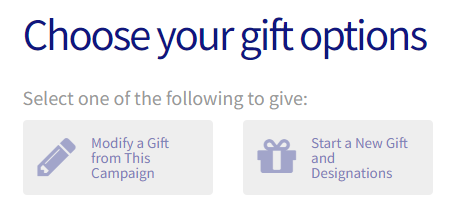
Click Start a New Gift or Renew Your Previous Gift*. *If there is a gift on file for the prior year, the option to Renew Your Previous Gift will be presented.
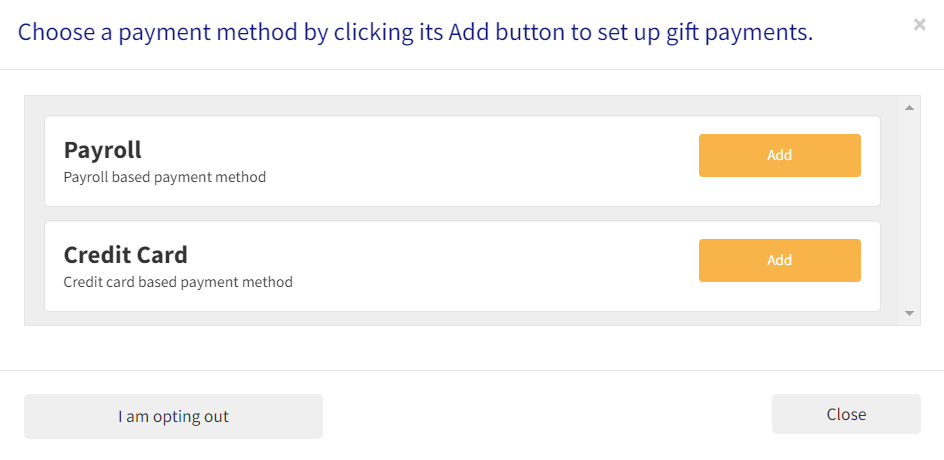
Choose a payment method. Each payment method will have different instruction.
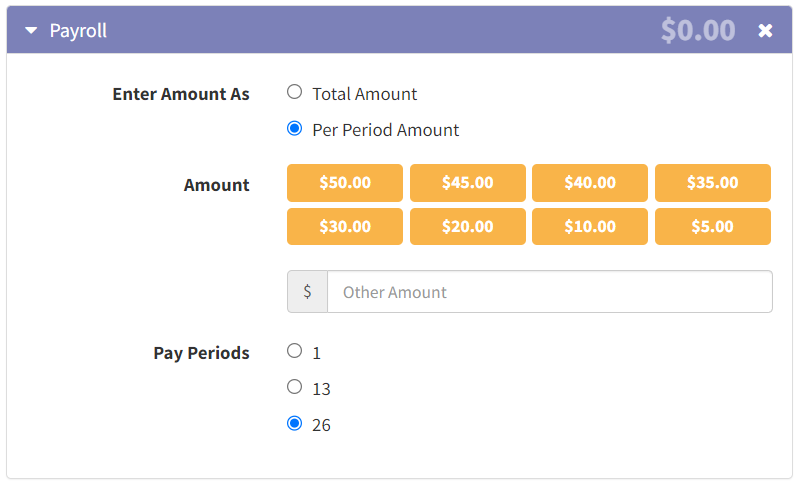
For Payroll Deduction, enter your gift amount either by the Total Amount or Per Pay Period Amount.
If your company wishes to use % of Salary for amounts please have your HR department contact our United Way.
Click Continue.
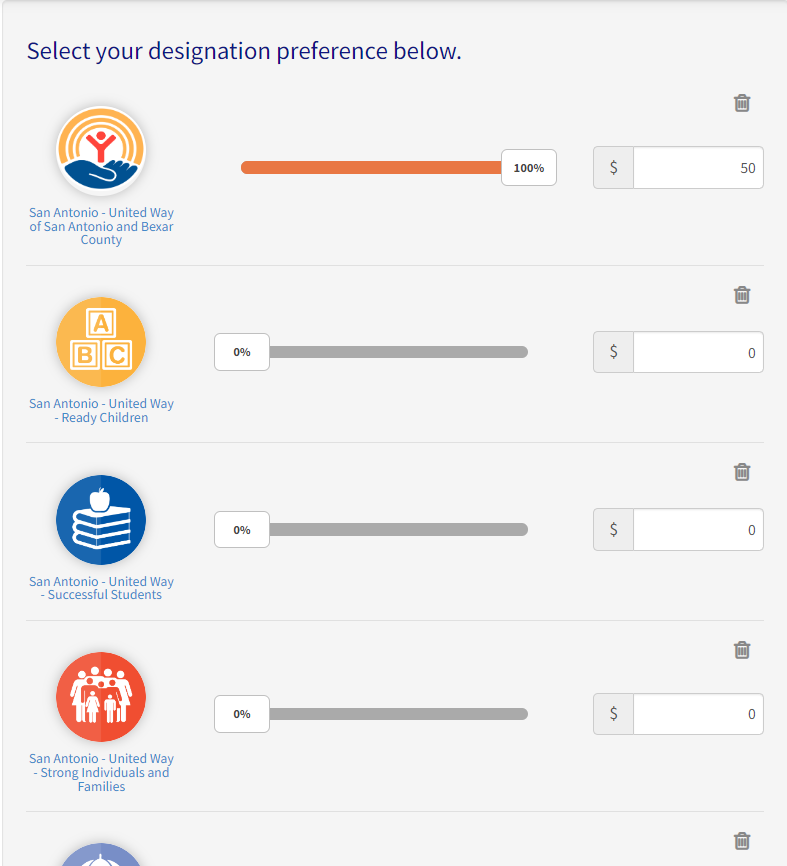
To allocate your gift, use the sliders or enter amount(s). If you want to allocate to another nonprofit, follow the steps below:
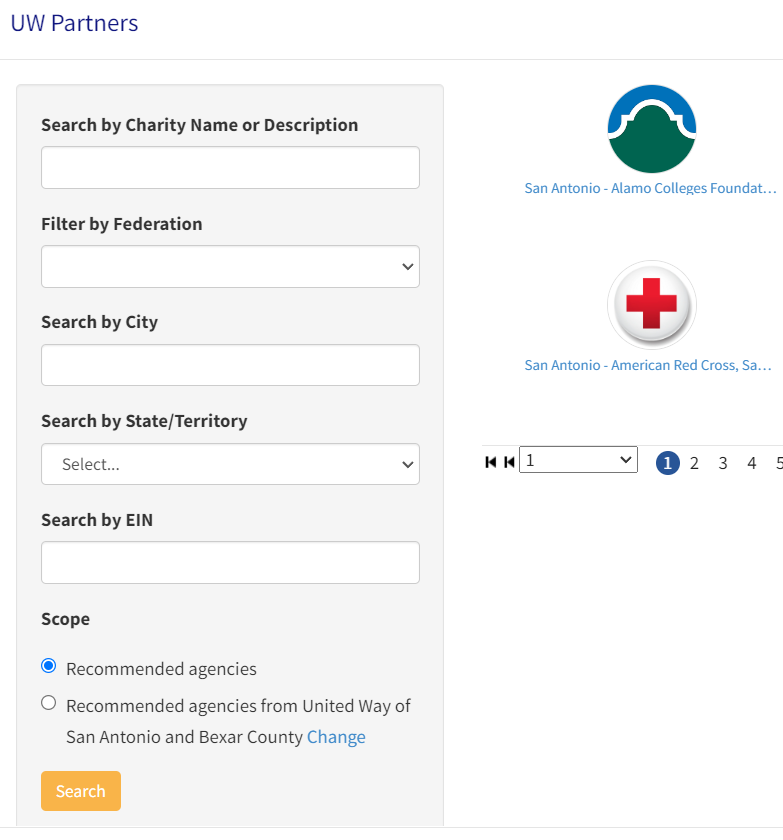
Click Find a Charity.
Search by Charity Name or Description.
If charity does not appear at first, try:
Under Scope click Recommended agencies before searching again.
Additionally, you can modify by the other parameters listed.
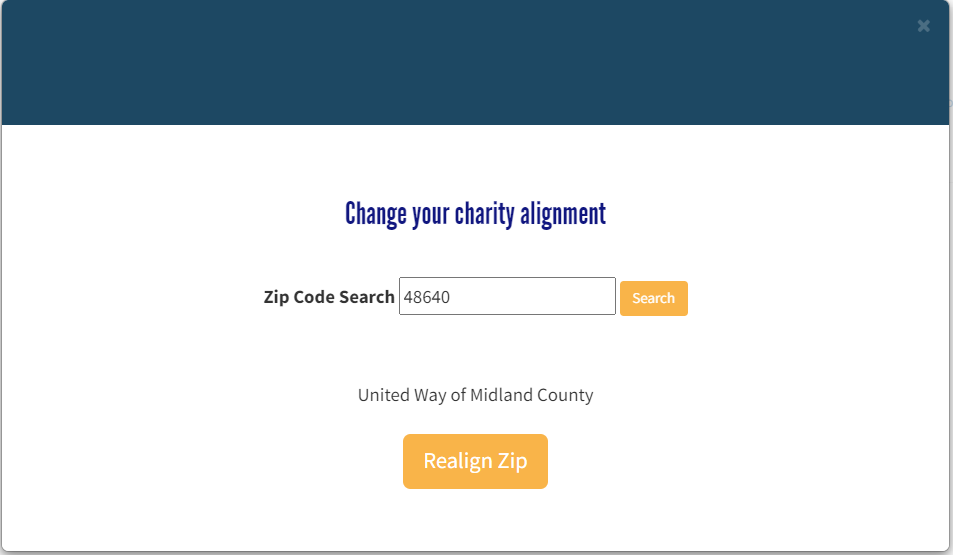
If allowed, you can realign your zip code to change which agencies are presented. Click on the blue Change under scope.
Enter your preferred zip code and click the Realign button. Click the Search button again to refresh your agencies.
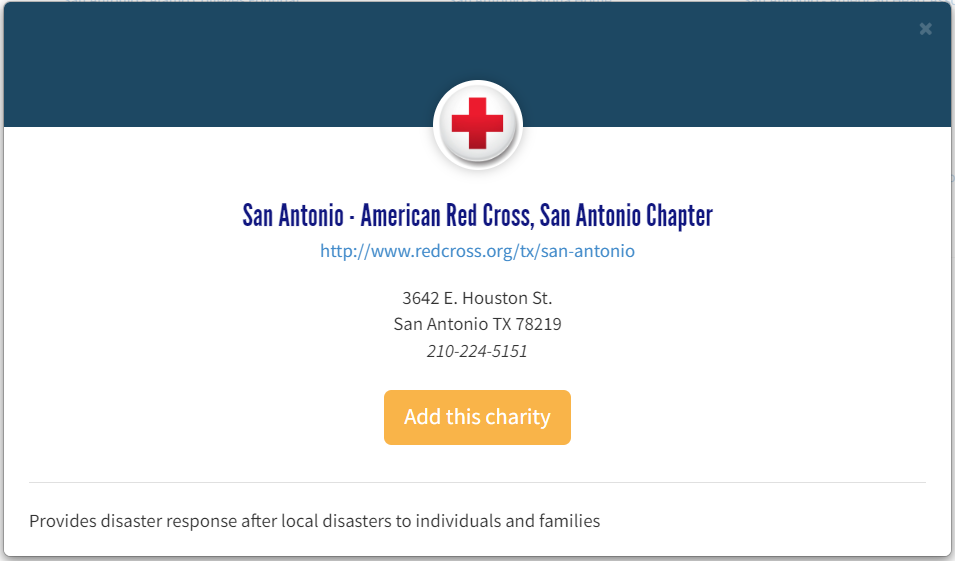
When you find the Charity you wish to add to your designations, click on the button or the highlighted name.
Then click on the Add this charity button.
You can add multiple Charities this way, and when you have added all of the desired designations you can click the Add to Designations button to be taken back to the designations page to allocate your amounts.
Once you have allocated 100% of your gift, follow the rest of the steps to complete your changes. You will see a thank you page when you have successfully finished all the steps.
An automatic email confirmation will be sent to your work email address.